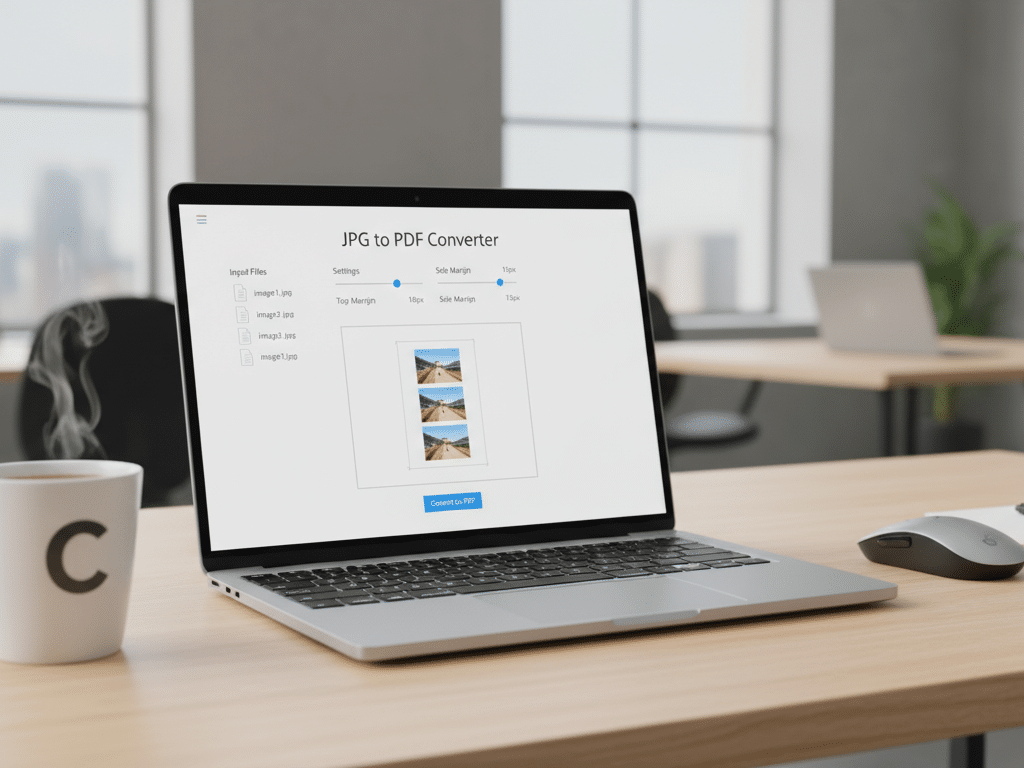
In the modern digital landscape, the ability to manage and organize visual data efficiently is a critical skill for both students and professional post writers. Whether you are compiling research notes, creating a portfolio, or preparing a document for publication, converting multiple images into a single, cohesive PDF file is often a necessity. This process not only ensures that your images remain in the correct sequence but also provides a professional finish that is easy to share across various platforms. By utilizing smart tools and SEO helping tools, users can streamline this workflow, ensuring that their documents are not only aesthetically pleasing but also optimized for their specific needs.
https://anows.com/custom-tool/images-to-pdf
The Importance of Converting Images to PDF
Converting images into a PDF format offers several advantages over keeping them as individual files. For professionals, it represents a standard of organization that is expected in the corporate and creative worlds. For students, it simplifies the submission of assignments that may consist of multiple scanned pages or digital diagrams.
Universal Compatibility and Portability
One of the primary reasons to use PDF as a final format is its universal compatibility. Unlike specific image formats like HEIC or TIFF, which may require specialized software to view, a PDF can be opened on almost any device, including smartphones, tablets, and desktop computers. This portability ensures that your content looks exactly as intended, regardless of the recipient’s hardware or software setup.
Security and File Integrity
PDFs provide a level of security that raw image files do not. You can easily password-protect a PDF, restrict printing, or prevent text and image extraction. Furthermore, when you combine images into a single PDF, the layout is locked. This prevents accidental rearrangement of images, which is a common issue when sending multiple JPEG or PNG files in an email or folder.
The Role of Margin Settings in Document Design
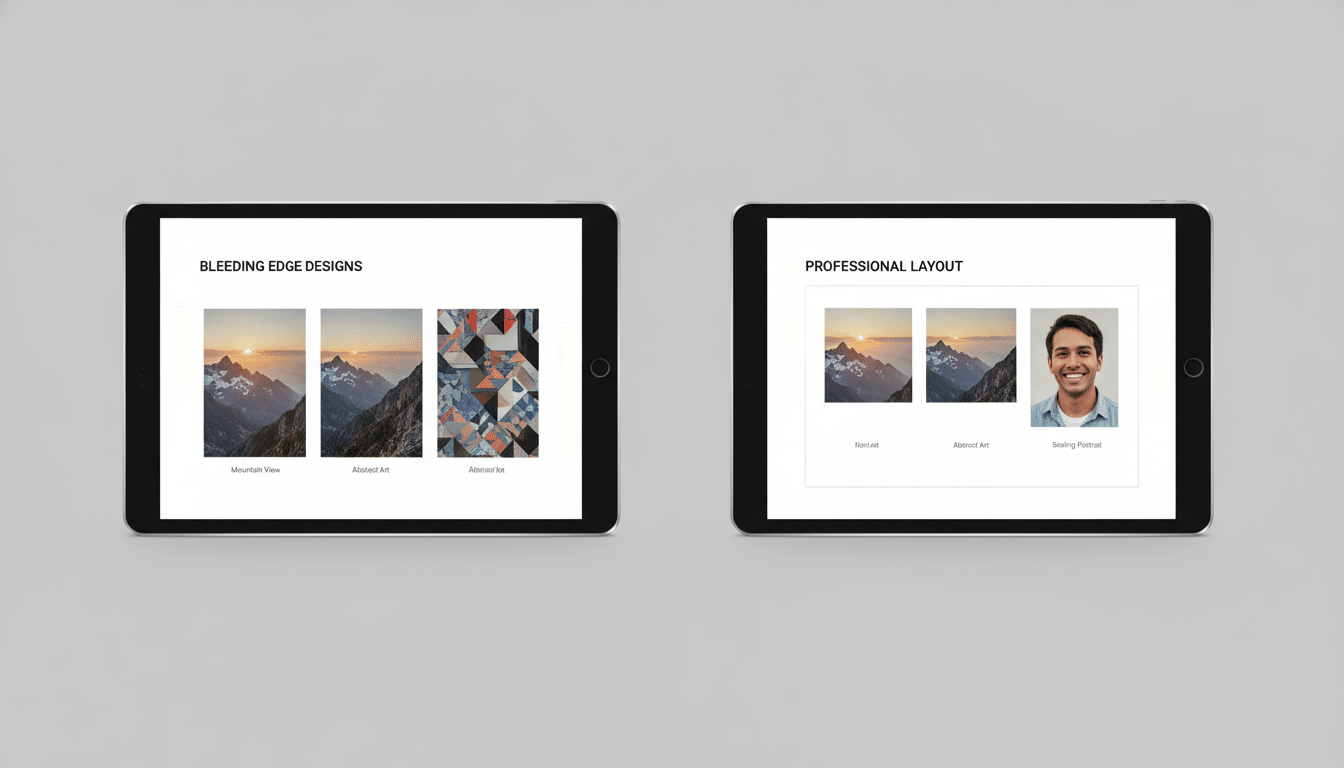
While simply converting images to PDF is useful, the ability to adjust margin settings is what separates a basic document from a professional one. Margins are the white spaces surrounding the content on a page, and they play a vital role in both the aesthetics and the functionality of the document.
Optimizing for Professional Printing
If you intend to print your PDF, margin settings are non-negotiable. Most printers have a ‘non-printable area’ near the edges of the paper. By setting appropriate margins using smart tools, you ensure that no part of your image is cut off during the printing process. Standard margins also provide space for binding, such as hole-punching or stapling, without obscuring the content.
Enhancing Readability and Visual Appeal
For post writers and digital creators, visual hierarchy is key. Images that bleed to the very edge of a page can feel cramped and overwhelming. Adding a consistent margin creates a frame around your images, making the content feel more organized and easier for the reader to digest. This is particularly important for academic posters, digital portfolios, and instructional guides.
Leveraging Smart Tools and SEO Helping Tools for Efficiency
In the fast-paced world of content creation, manual tasks can consume valuable time. This is where smart tools and SEO helping tools become indispensable. These tools are designed to automate repetitive processes, allowing creators to focus on the quality of their content rather than the technicalities of file management.
Why Smart Tools Are Essential
Smart tools use advanced algorithms to handle image compression and layout optimization. When converting multiple images, these tools can automatically resize images to fit standard page sizes (like A4 or Letter) while maintaining the original aspect ratio. This prevents distortion and ensures a high-quality output every time.
- Batch Processing: Convert dozens of images simultaneously.
- Automatic Alignment: Ensure all images are centered or aligned to specific grids.
- Format Flexibility: Support for JPG, PNG, BMP, and WebP formats.
The Intersection of SEO and Document Management
SEO helping tools are often associated with keyword research and backlink analysis, but their utility extends to asset optimization. For post writers, ensuring that a PDF is optimized for search engines is a significant advantage. This includes managing the file size so that the PDF loads quickly when hosted on a website. High-quality smart tools allow you to balance image resolution with file size, ensuring your document is both sharp and web-friendly.
Step-by-Step Guide to Converting Images with Margins
To achieve the best results, follow this structured approach when using an online converter or specialized software.
Step 1: Prepare and Sequence Your Images
Before uploading, ensure your images are named logically (e.g., Image_01, Image_02). This helps many smart tools automatically sort them in the correct order. Check the resolution of your images; higher resolution images will result in a clearer PDF but a larger file size.
Step 2: Choose Your Margin Preferences
Most high-quality converters offer three main margin options:
- No Margin: The image fills the entire page.
- Small Margin: A subtle border that provides a clean look without wasting space.
- Large Margin: Ideal for documents where annotations or notes might be added later.
Step 3: Set Page Orientation and Size
Decide whether your PDF should be in Portrait or Landscape mode. For a mix of horizontal and vertical images, some smart tools offer an ‘Auto’ setting that adjusts the page orientation for each specific image, creating a dynamic and professional document.
Use Cases for Students and Post Writers
Understanding the practical applications of these tools can help users maximize their productivity.
For Students: Compiling Academic Portfolios
Students often need to submit portfolios of their work, which might include sketches, photographs of physical projects, and digital diagrams. By using a converter with margin settings, a student can create a unified document that looks like a published book. This level of detail can significantly impact the presentation grade and the overall professionalism of the submission.
For Post Writers: Creating Lead Magnets
Post writers often create ‘lead magnets’—free downloadable PDFs offered in exchange for an email subscription. These PDFs need to be visually stunning to build trust with the audience. By converting high-quality images with perfect margins, writers can create checklists, infographics, or mini-ebooks that look professionally designed without needing expensive graphic design software.
Technical Considerations: Resolution and Compression
When converting images to a single PDF, it is important to understand the technical trade-offs between quality and file size. SEO helping tools often emphasize the importance of ‘Page Speed,’ and the same logic applies to PDF files shared online.
Maintaining Image Clarity
Standard print quality is usually 300 DPI (Dots Per Inch). If your PDF is intended for high-quality printing, ensure your smart tools do not over-compress the images. However, for digital viewing, 72 to 150 DPI is usually sufficient and will result in a much smaller, more shareable file.
Handling Different Aspect Ratios
Images come in various shapes and sizes. A professional converter will allow you to choose how these images sit within the PDF page. You can choose to ‘Fit’ the image (which might leave extra white space if the aspect ratio doesn’t match the page) or ‘Fill’ the page (which might crop the image). Margin settings help mitigate the awkwardness of mismatched aspect ratios by providing a consistent frame.
Conclusion
Converting multiple images into a single PDF with custom margin settings is a simple yet powerful way to enhance your digital workflow. Whether you are a student striving for academic excellence or a post writer looking to impress your audience, utilizing smart tools and SEO helping tools ensures that your documents are professional, accessible, and optimized. By paying attention to details like margins, page orientation, and file size, you transform a collection of loose files into a cohesive and impactful document. Start using these tools today to streamline your content creation process and present your work in the best possible light.